
Using Coins.ph is one of the easiest and hassle-free way to buy your favorite game titles on Steam. Steam offers many affordable games to choose from. Playing games has become my stress reliever after doing engineering work in the day and stock market related work at night.
Coins.ph made a step-by-step process on how to buy games using Steam Wallet here. But in this post, I’ll share a different process which enabled me to buy one of my favorite console port android game, Oddworld Stranger’s Wrath on my laptop.
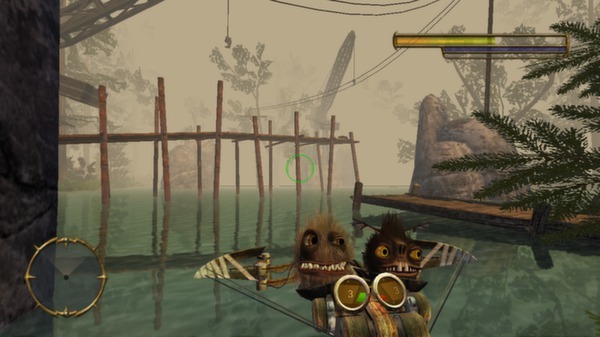
I have this game before in my tablet and now in my mobile phone and is best played with a bluetooth controller. I decided to buy this game in Steam so that I can play it in a more immersive way.
If you love Steam Games and want to use Coins.ph to purchase the games you like, then this post is for you.
So now, let’s begin!
How To Buy Steam Games Using Coins.ph
In order for you to buy Steam Games, you need to create an account first. Here’s a tutorial on how to create one.
Once you have an account, follow the instructions below. It applies to all games being sold in Steam. Here’s what I did that enabled me to buy Oddworld Stranger’s Wrath:
Step # 1: Go to the Steam website, browse the games you want and click on the buy button.
You’ll then be asked to purchase it for yourself or as a gift. Click purchase it for yourself and proceed till you go to choosing the payment option.
Step # 2: Choose Bitcoin as the payment option.
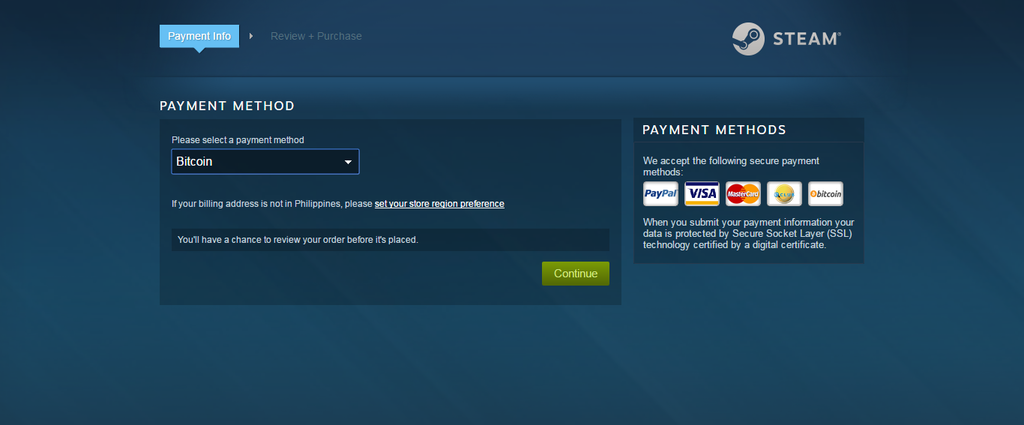
From here, you’ll then be asked to continue paying using Bitpay. Click Continue to Bitpay and you’ll be redirected to a page where you will now need to use your Coins.ph account to pay.
Step # 3: Pay using your Coins.ph account.
The payment invoice should look like this.
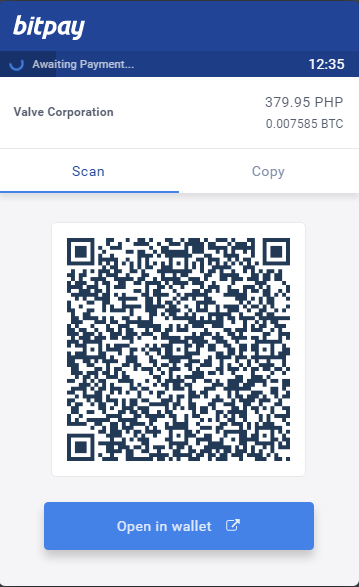
To pay, you need to scan the barcode using your Coins.ph app on your mobile device within the alloted time. Once scanned, the payment will now be processed.
[thrive_text_block color=”light” headline=”TIP”]
Scanning is the safest way to transfer money using Bitcoin transactions because these are irreversible. If you mistyped the wallet code, you can never get your money back once you confirmed the sending process. So please make sure to double check your transactions before hitting the pay button.
[/thrive_text_block]
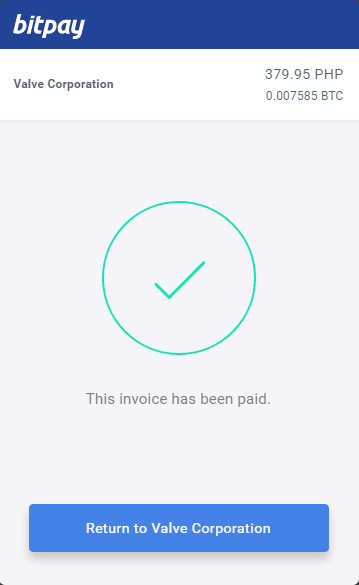
On your Coins.ph account, confirmation should look something like this.
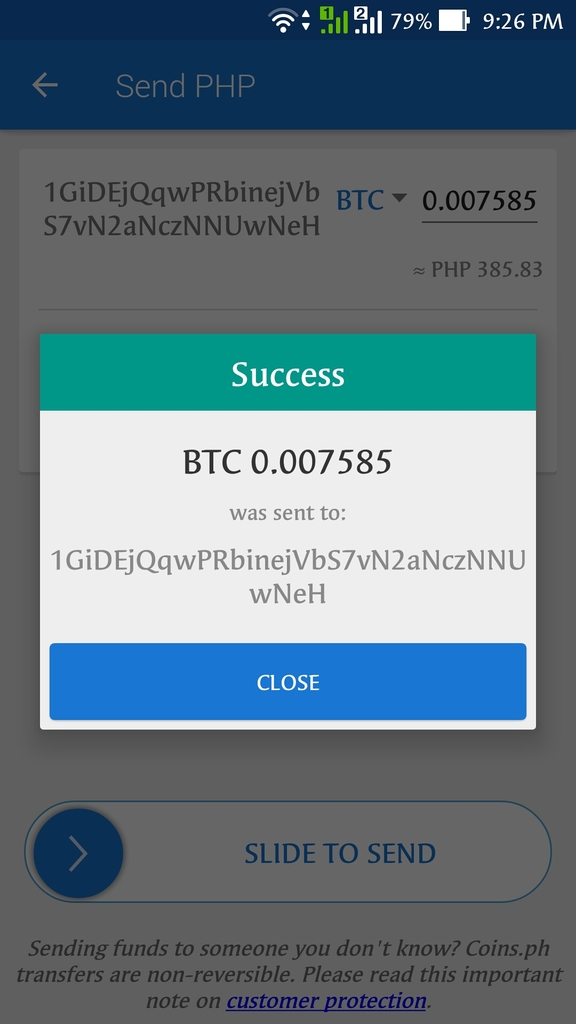
Steam will inform you of the transaction update once payment has been made. Bitcoin transactions need at least one blockchain confirmation in the Bitcoin network. It took me around an estimated 20 to 30 minutes for my payment to go through. After that, my game is now already available foe download and install.
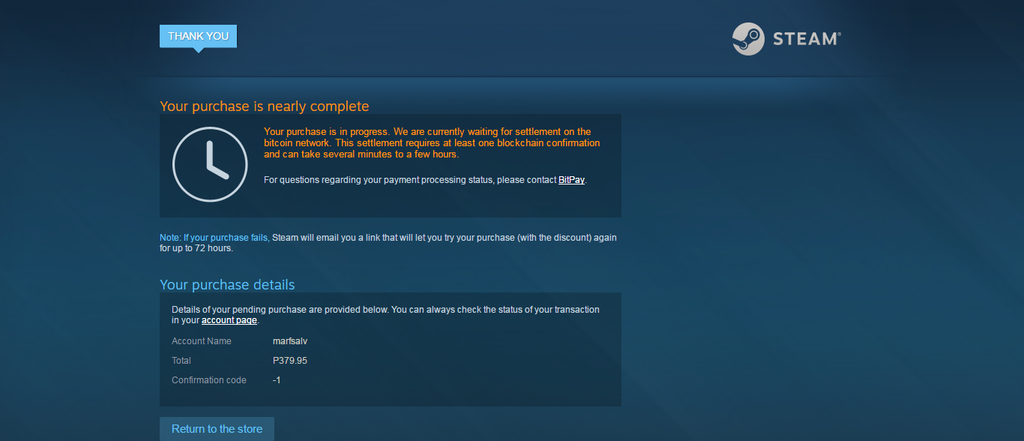
That’s it. It’s a very simple process. No need to create and verify a Paypal account, a credit card and/or a debit card. Creating a Coins.ph account is easy and anyone even a 13-yr. old kid can buy his favorite Steam games with little effort.
For a detailed review on how I use it in conjunction with my bank account, read my Coins.ph review here.
Final Thoughts
I know that this post is not financially related but Bitcoins is turning to be a big part of our lives especially in today’s modern society. If you have access to low-cost and stress-free financial services such as Bitcoin exchanges like Coins.ph to meet your payment and transaction needs, then life feels so much easier.
I’ve demonstrated how you can buy games using Bitcoins. Take note that there are other things that you can also do besides buying games. Coins.ph allows you to pay all sorts of things from bills, loans, dining and even OFW remittances.
I love how Coins.ph deliver stress-free financial services to almost anyone who can use a mobile device. If you want to try out Coins.Ph, you can create an account using my affiliate link below. As an added bonus, we both make 50 pesos upon verified sign-up.

So give it out a try and use Coins.Ph to buy your favorite game titles online!
[thrive_text_block color=”green” headline=””]
Sign Up In Coins.Ph!
[/thrive_text_block]